- You are here:
- Home
- Support
- Symbol Resources
- Installation
 Symbol Resources
Contact Widgit
Email: support@widgit.com
Tel: 01926 333680
Common Questions
 I have purchased a ready-made resource from the online shop, what do I do next?
 Solution
1. The Widgit Shop
After creating a customer account on Widgit.com, you will be able to purchase, download and install ready-made resource packs on your machine for use with InPrint 3.
2. Downloading Resources
To download your resources you must first login to your account using your email address and password.
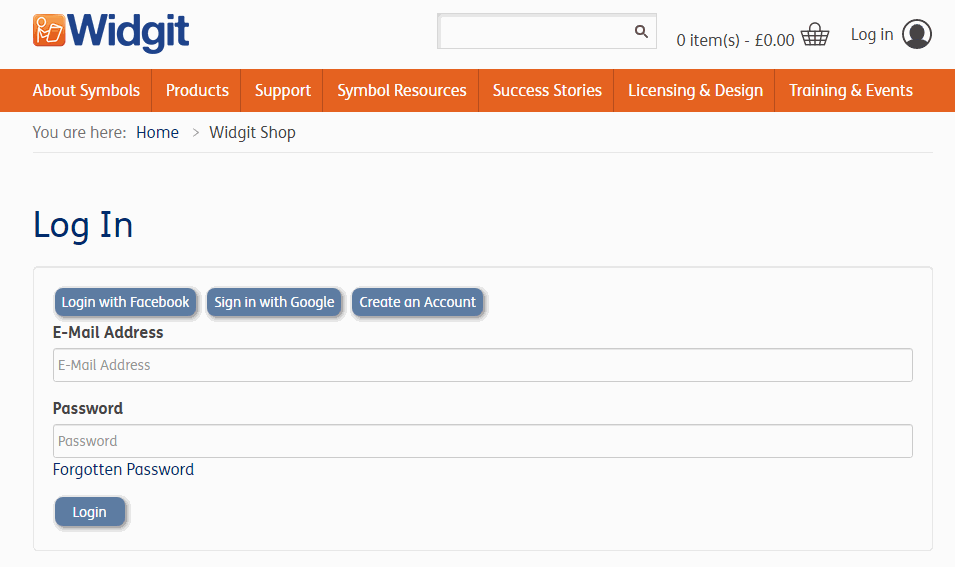
Once logged into your account you will have a number of options. You will be able to edit your account information, change your password and view your order history.
Under the My Account section, click the 'Downloads' option.
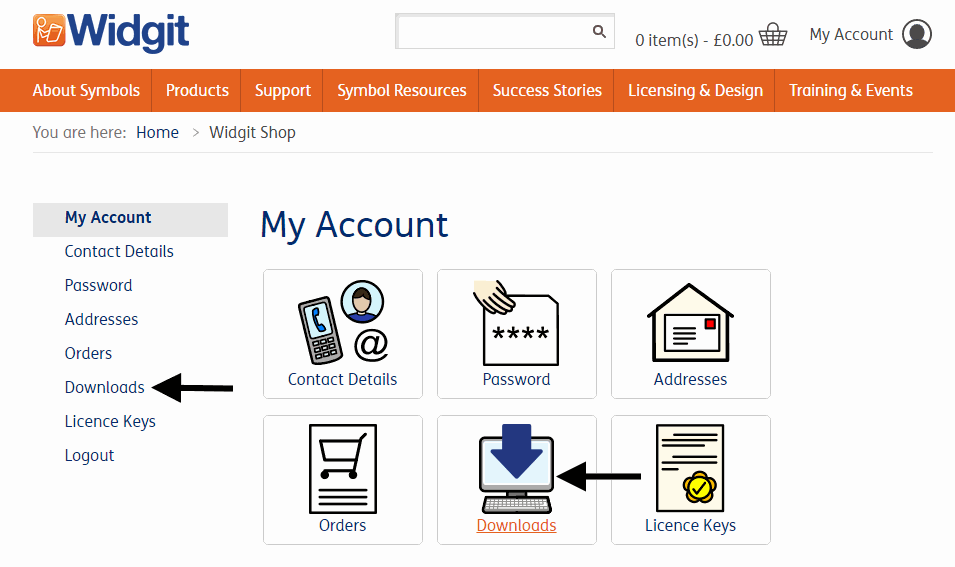
You will then be able to view all of the products you have available to download.
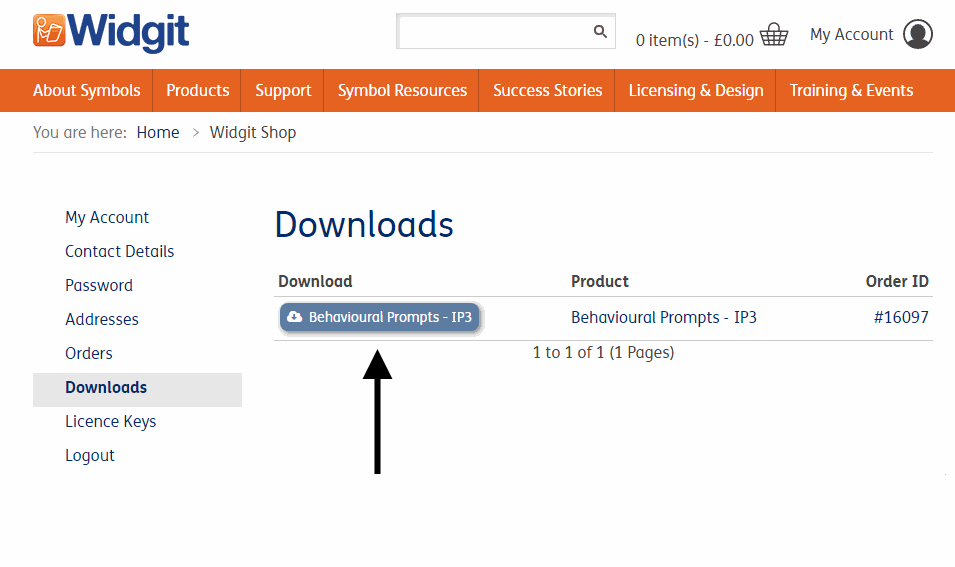
Click the download link. The file will then be downloaded and added to your downloads folder, which by default is located in the following location: C:\Users\{Your Username}\Downloads
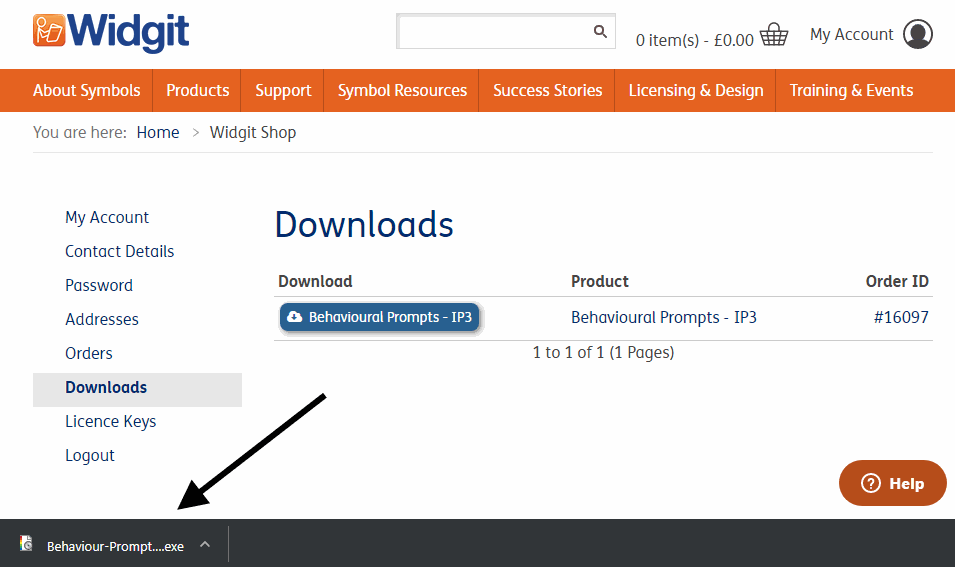
If you need to re-install your resource packs at any time you can always log-in to your account on Widgit.com and redownload the installation file.
3. Installing Resources
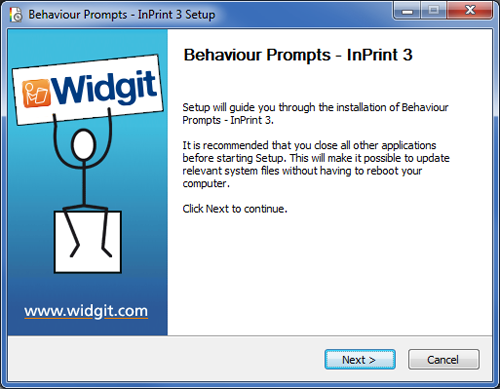
When the file has finished downloading, double click on it to start the installation process and add it for use with InPrint 3. After the installation Wizard opens click 'Next' to begin.
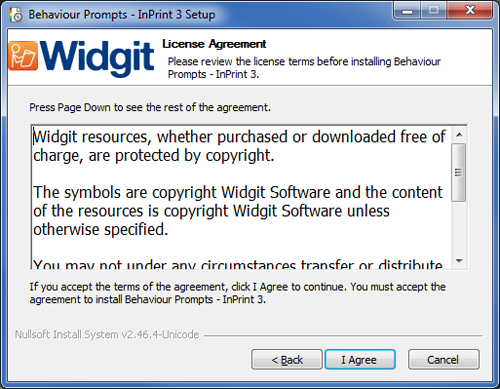
A copy of the licence agreement will then be displayed on screen. You must click "I Agree" to proceed with the installation.
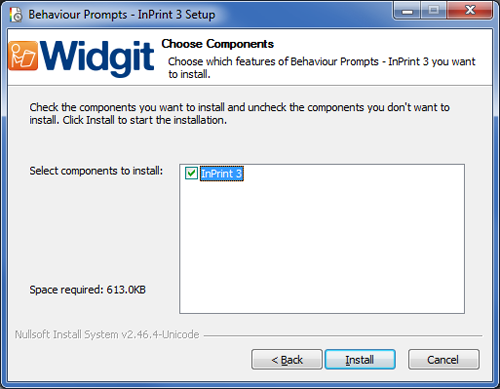
You will then be asked to choose which features of the resource pack you want to install. InPrint 3 should be selected, If it is not please make sure the InPrint 3 software is installed on the system. Click "Install" to proceed.
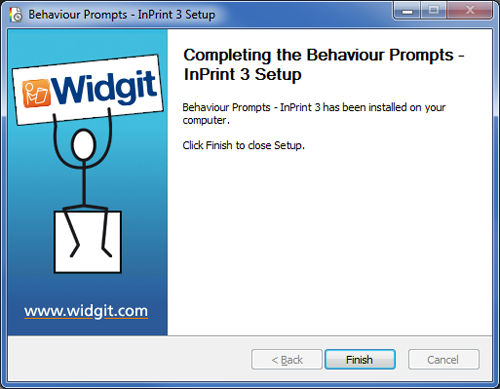
You may see a progress bar as the installation copies files to your machine. When the installation is complete, click 'Finish' to close the wizard.
4. Accessing Resources
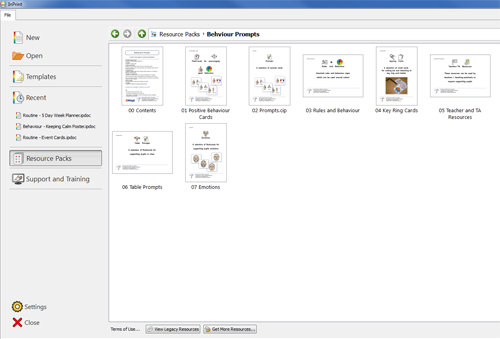
Once installed, you will be able to access the resources through InPrint 3. Open InPrint 3 and click the Resource Packs icon from the launcher to view all of your available packs.
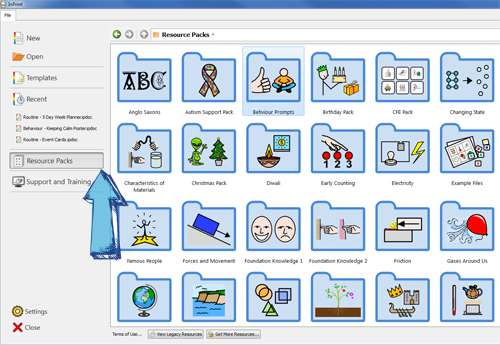
Double click on a resource pack to view it's contents and open files for editing or printing.