Widgit Online: Tips of the week

Tips of the week

Discover a new Widgit Online Top Tip every week. These short videos are designed to help you build confidence, save time and explore features you may not yet be using.

Whether you’re just getting started or looking to refine your skills, there’s always something new to try.
Video Thumbnail

Tip 1: Resources Section

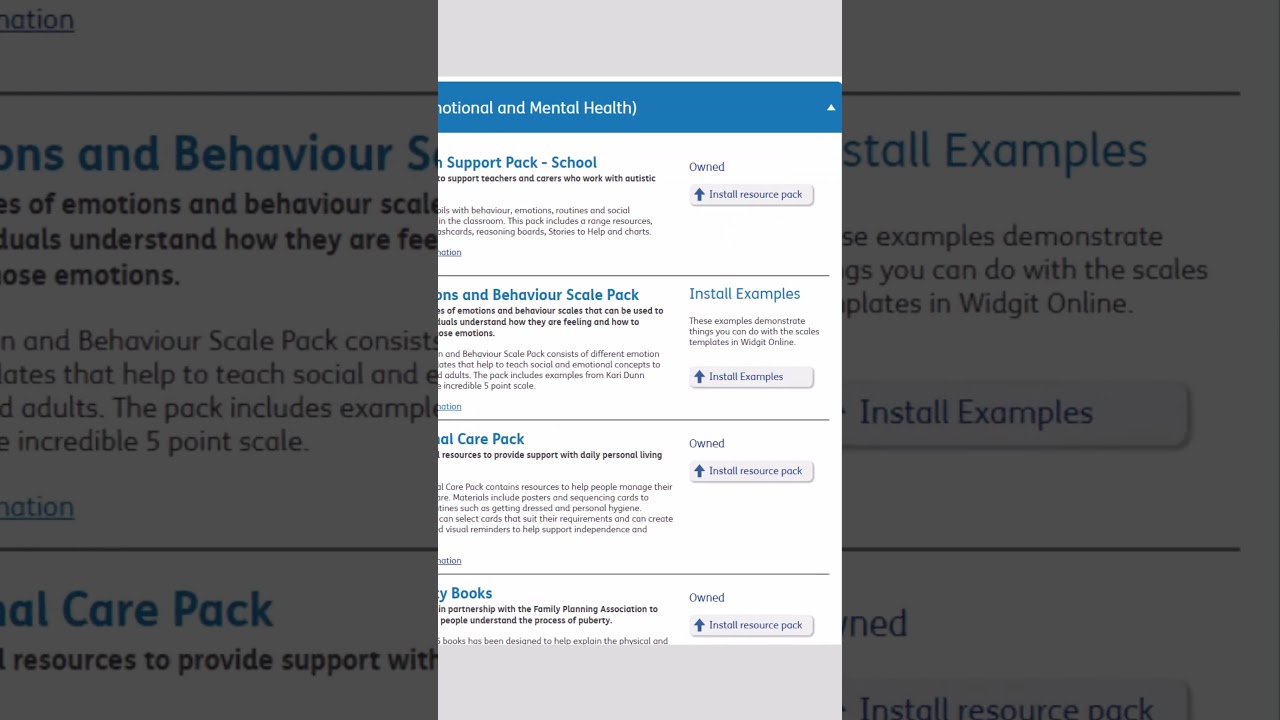
Did you know your Widgit Online account includes loads of ready-made packs?

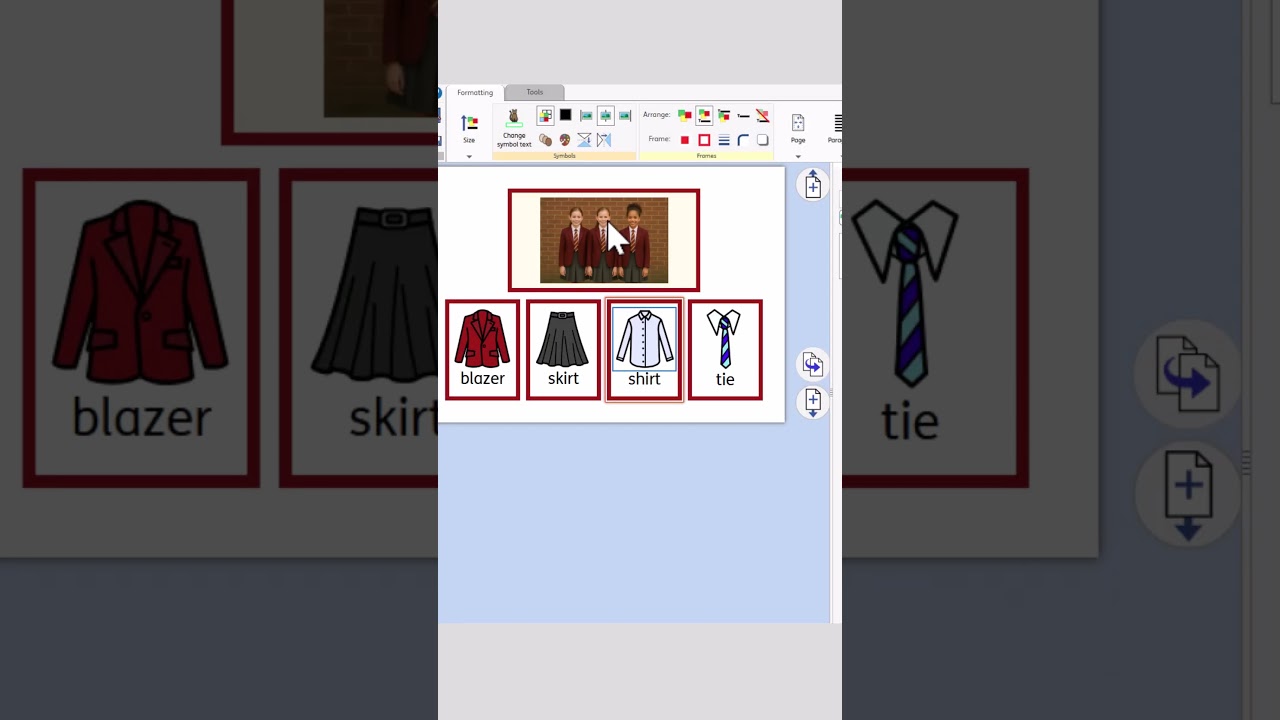
From the Classroom Pack to the Autism Support Pack and Puberty Books – they’re all ready for you to install from the Resources section. Once added, they’ll show up in your Documents area.

Video Thumbnail

Tip 2: Varied Skin Tones

Creating resources for a group of learners? It’s important that everyone can see themselves reflected in the materials you use.

We recommend keeping the ‘Show varied skin tones in symbols’ setting ticked in Widgit Online – it’ll automatically show a mix of skin tones when a symbol has more than one person.

For symbols showing just one person, try using the Skin Tones tool to add variety across your resources. These small details can go a long way in helping everyone feel seen and included.

Video Thumbnail

Tip 3: Formatting Frames

Customise the default frames in Widgit Online templates to suit your learners and setting.

With just a few clicks, you can adjust the shadow, corner roundness, border thickness, border colour and background colour.

This is especially useful for supporting colour coding, enhancing visual clarity and adapting resources for learners with sensory or cognitive needs.

Video Thumbnail

Tip 4: Changing Symbol Colours

Personalise your Widgit Symbols with custom colours.

Whether you’re using a learner’s favourite colour, supporting visual needs, or matching the look of real-world objects, small changes like this can make your resources feel more more relevant and engaging.

Just highlight the symbol you want to update, click the ‘Edit the symbol colours’ button, and pick the colours that work best for you.

Video Thumbnail

Tip 5: Turning Symbols in to Outlines

Switch any symbol from colour to outline style with a single click.

This removes the fill colour, making it perfect for colouring activities or reducing visual distractions.

You can also customise the frame background and outline colour to match your resources or setting – great for display labels, themed materials, or even aligning with your school colours.

Video Thumbnail

Tip 6: Populate Frames

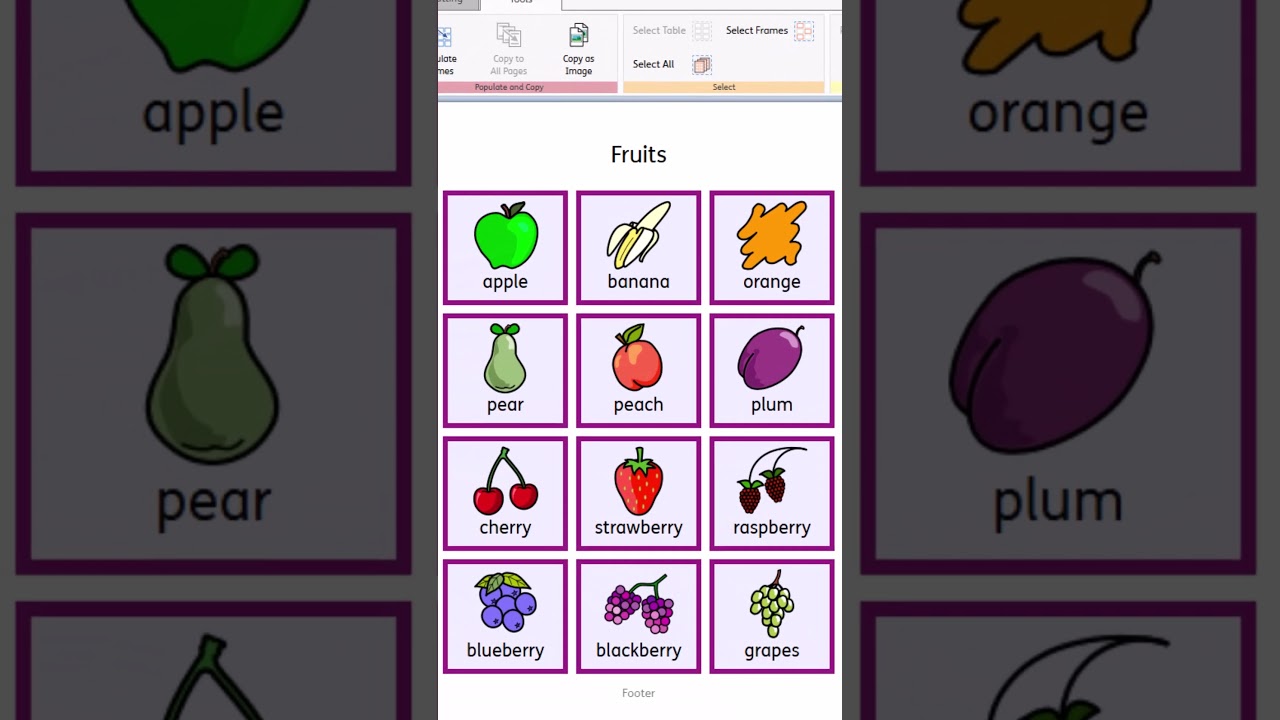
The Populate Frames tool in Widgit Online is a huge time-saver for filling pages with symbols.

Just paste your words into the tool and it will automatically populate the frames for you. And if a generated symbol doesn’t quite work for your context, you can quickly choose an alternative from the symbol picker.

Pro tip: prepare your list of words on a separate sheet first, so you can easily copy and paste them in.

Video Thumbnail

Tip 7: Adding Images

You can add more than just symbols to your Widgit Online resources.

Upload any images from your device using the Image Library, or choose from thousands of ready-to-use options with the Web Images tool.

Perfect for personalising your resources and adding extra context to support understanding.

Video Thumbnail

Tip 8: Adding a Second Symbol to a Frame

Add a second symbol to a frame to provide additional visual support.

It’s a great way to reinforce meaning, show two objects side by side, or give learners richer visual context.

You can even use it with images, making resources more accessible for learners with different processing needs and communication preferences.

Video Thumbnail

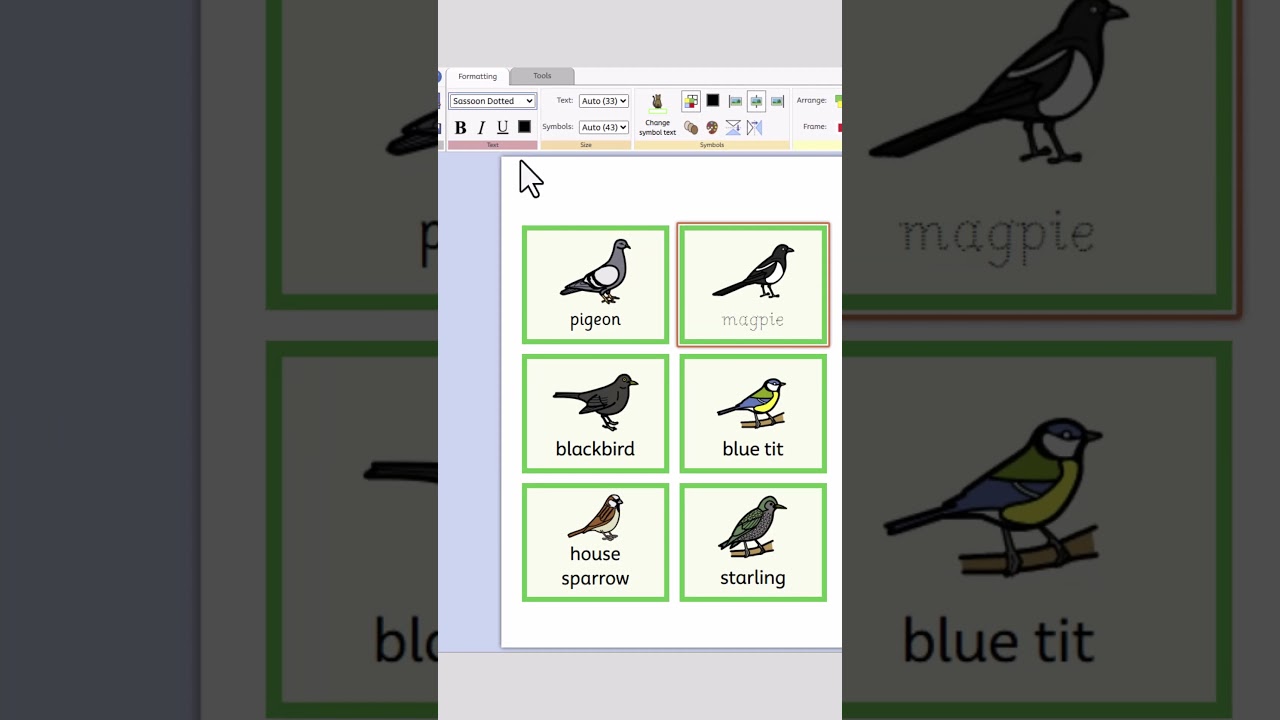
Tip 9: Text and Symbol Position

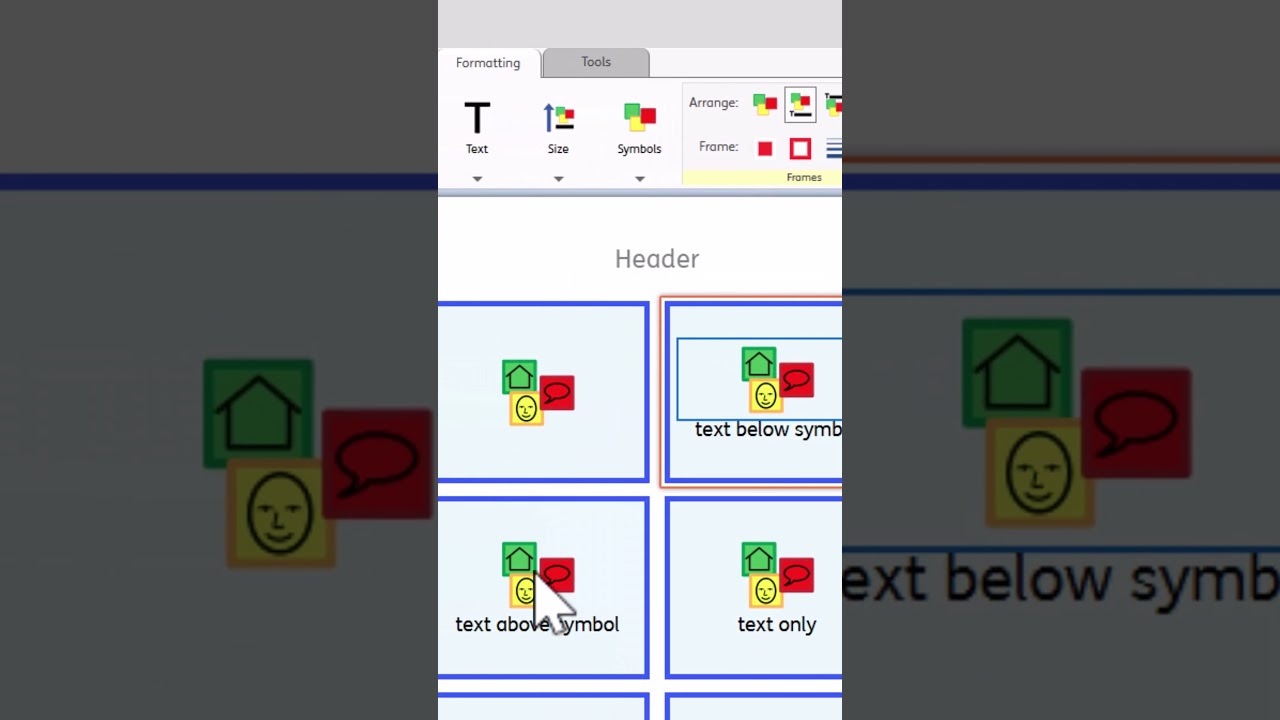
You can change where the symbol and text appear in Widgit Online – symbol on top, text on top, symbol-only, or text-only.

This flexibility works well across different classroom activities.

For example, try symbol-only and text-only frames for word-to-symbol matching, or keep both together to build vocabulary and support comprehension.

Video Thumbnail

Tip 10: Hiding Unused Frames

Keep your layouts clean by hiding frames you don't need.

Set their border colour to ‘No colour’ and leave them blank. When you export your PDF, those frames won’t appear.

Pro tip: Duplicate your layout before adding content to save time styling each page.

Video Thumbnail

Tip 11: Populating Frames with the Same Symbol

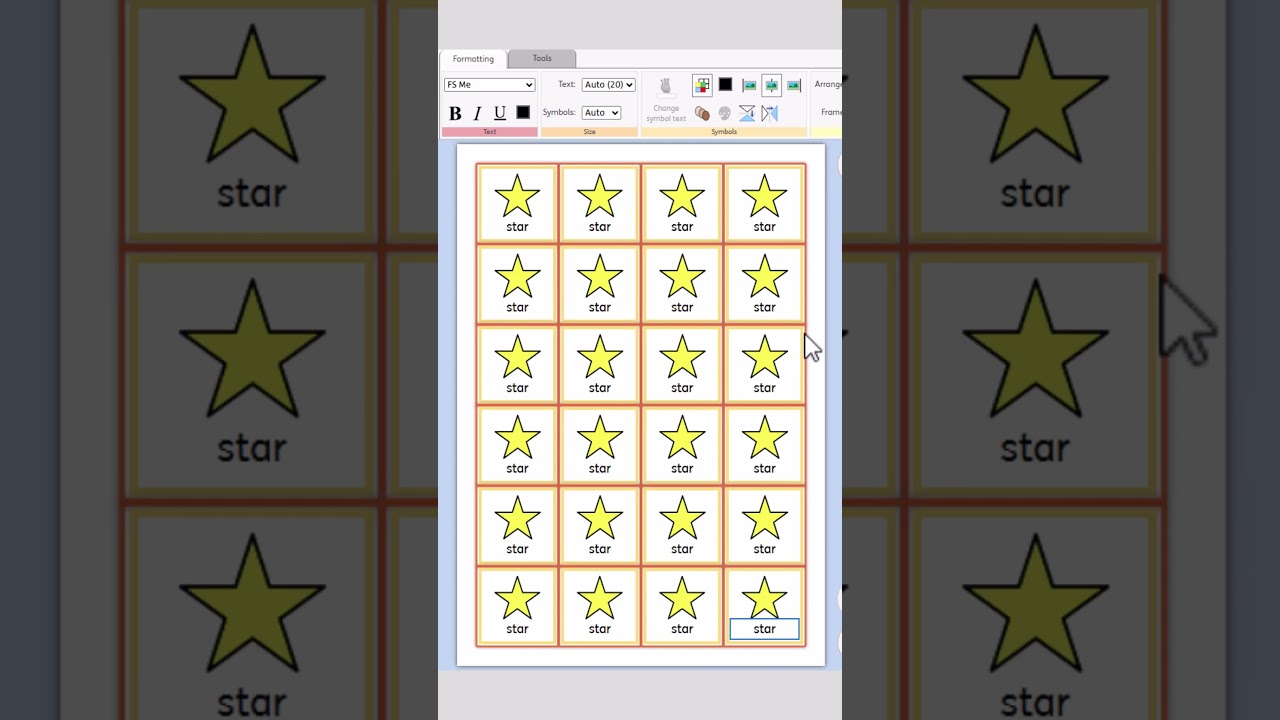
There is a quick and easy way to fill all your frames with the same symbol in Widgit Online.

Just select the frames in your template and start typing your word. The symbol will automatically appear in every frame. Perfect for creating identical resources for every pupil in your class.

Video Thumbnail

Tip 12: Custom Templates

Save time by creating your own custom templates.

If you often apply the same formatting to the default templates, such as border colours, background colours or border thickness, there’s no need to repeat the process each time.

Set it up once, save it as a custom template, and reuse it whenever you need.

You can leave the template blank or even include the symbols you use most often.

For example, you might add core words that stay the same, then add extra symbols when you build the resource for each activity.

Video Thumbnail

Tip 13: Combining Multiple Resources Into a Single PDF

This is useful for sharing multiple resources at once, printing a set of activities together or keeping related materials organised.

To create a combined PDF, first place the resources to be merged in the same folder. Then, from the location containing that folder (rather than inside the folder itself), click the PDF button next to the folder name.

You can then select or deselect resources and drag them into the order you want them to appear. Once you're happy with the selection, click Create PDF to generate your combined file. Find out more.

Video Thumbnail

Tip 14: Shared Folders

You can easily share resources with colleagues using Shared Folders in your Widgit Online group account.

For example, if someone in your school creates a resource, they can make it available to others by saving it in 'Shared Folders' instead of 'My Documents'.

Users in the same group account can then view it, download it as a PDF or make changes. This makes it much easier to collaborate and saves time when building resources. Find out more.

Pro tip: We recommend creating your own copy in 'My Documents' when editing shared resources. That way, you can make changes freely without affecting the original version.

Video Thumbnail

Tip 15: Creating Wordlists

You can customise symbols in Widgit Online and save them as your default.

Say you need to represent a specific person in your resources. One effective option is to add their photo, so every time you type their name, their photo appears automatically. Or say you want to change symbol colours to better match real-life objects – those customised symbols can be reused across future resources.

To do this, start by editing your symbols as needed, then go to Tools → Save Symbol Changes. In the new window, create a new wordlist and add your customised symbols to it. To make these changes your default for future resources, open Symbol Settings, select your new wordlist and click ‘Save as defaults’. Find out more.

Video Thumbnail

Tip 16: Dual-Language Templates

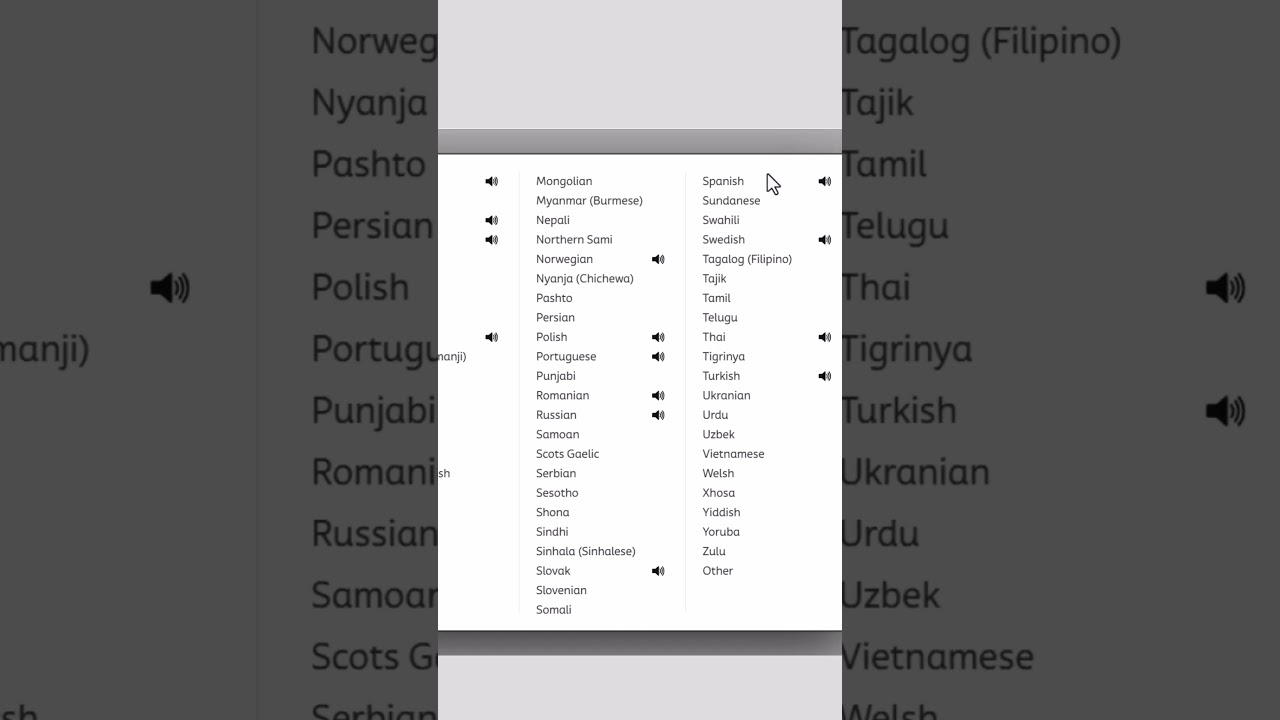
Widgit Online includes over 70 dual-language templates, supporting more than 100 languages.

From flashcards and vocabulary sheets to timetables, word maps and communication books, these templates make it easy to create symbol-supported resources for multilingual classrooms.

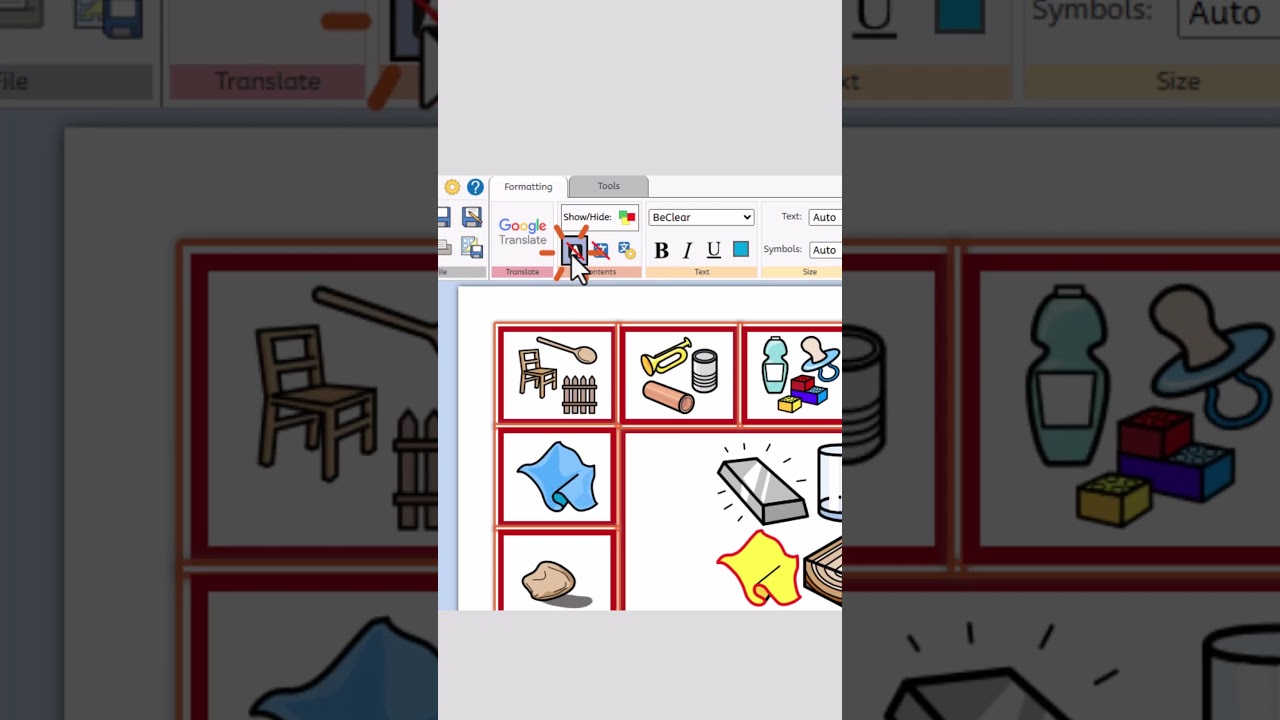
To create a dual-language resource, open Templates, select the ‘Dual-Language’ category, and choose your desired template. Select your language, add your words, then highlight the sheet and click the Google Translate button to translate everything in seconds. Find out more.

Video Thumbnail

Tip 17: Changing the Secondary Language in Dual-Language Templates

Switch the secondary language in dual-language templates without starting again.

If you’ve already created a resource in one language and need it in another, there’s no need to start from scratch. Select your words, click the Language Settings button, choose your new language, then press the Google Translate button to apply the updated translation.

It’s a real time-saver when you’re supporting pupils in the same class who speak different languages. It also means you can reuse the same resource year after year, adapting the language for new learners as needed. Find out more.

Video Thumbnail

Tip 18: Formatting Dual-Language Text

Dual-language templates in Widgit Online offer flexible options for displaying text.

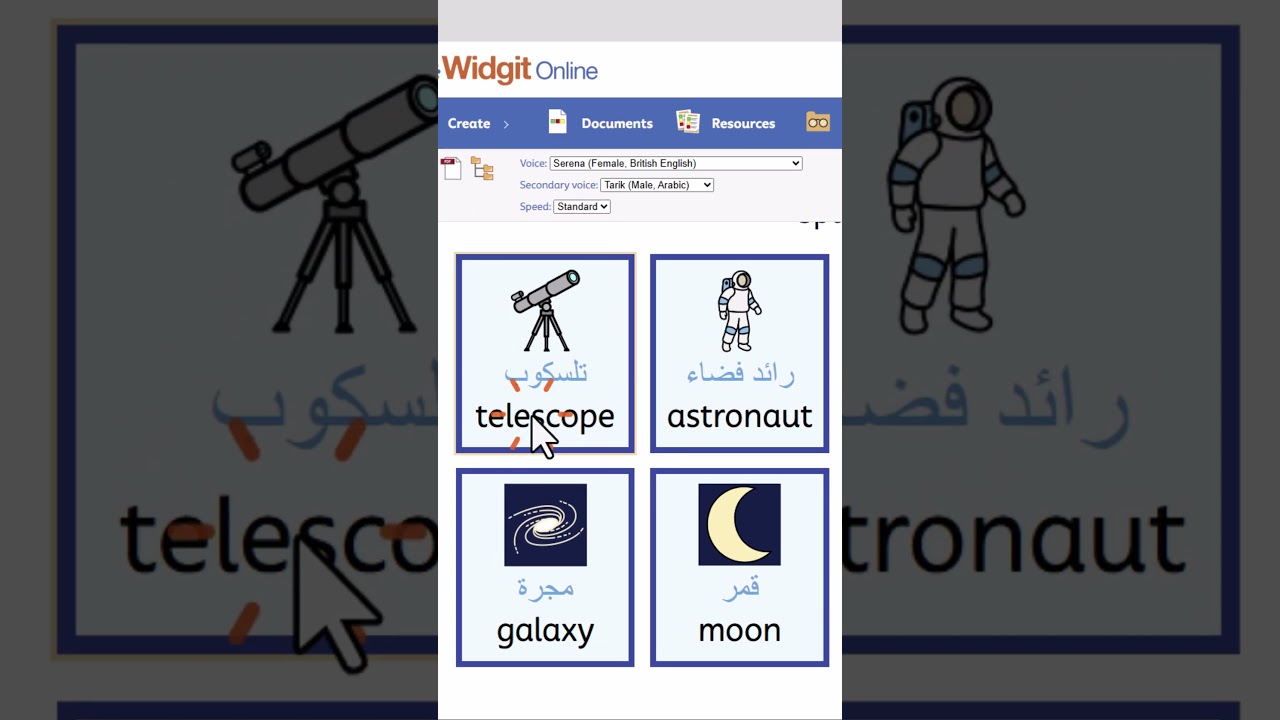
You can choose whether the English and translation appear above or below the symbol, swap their order and change the colours to make each language clearer. You can also show or hide either language, which is great for practising vocabulary and supporting language learning.

Video Thumbnail

Tip 19: Text-to-Speech

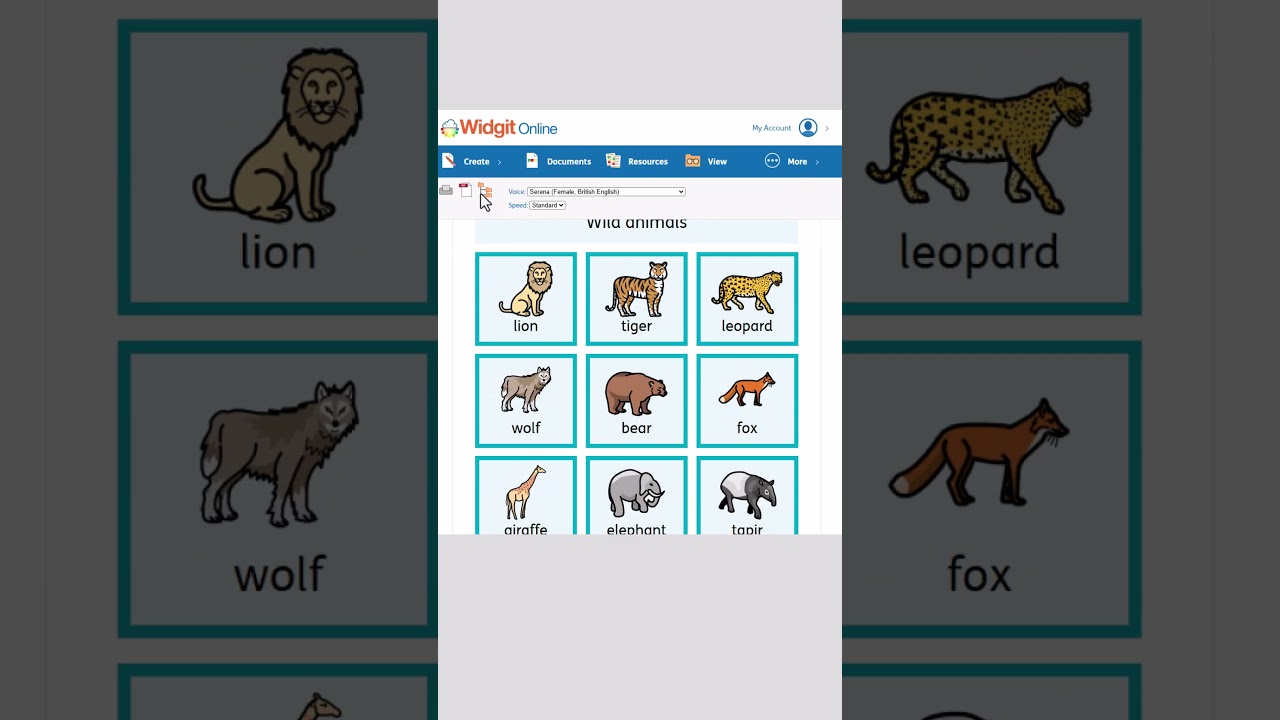
Make your resources even more accessible with text-to-speech. In View Mode, users can click to hear words read aloud, helping with reading, communication and language learning.

The feature is available across all resources, including dual-language templates, allowing text to be read aloud in both English and the secondary language.